 Epic7DB
Turn Game Screenshots and Corgi Photos Into Avatars and Cards
The Folder of Screenshots I Never Did Anything With
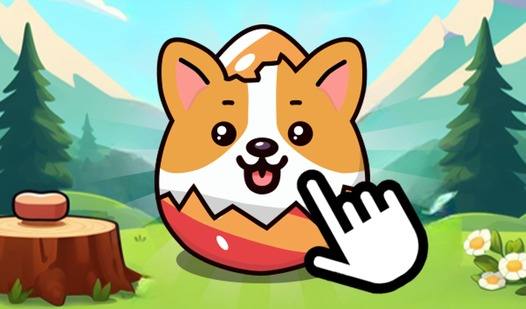
My phone has a folder called "screens" that would mean nothing to anyone but me. It holds Epic Seven summon results, a Stardew Valley farm I was weirdly proud of, a pile of photos of my corgi Biscuit asleep upside down, and a blurry group shot from a friend's birthday dinner. For a long time none of it went anywhere. I would crop something into a profile icon, hate how it looked at small size, and drop it back in the folder. Lately I've been running that folder through PicYep, a browser-based tool that generates new images and edits ones you already have. There is nothing to install, which matters to me because my laptop is already crowded with game launchers. It also starts you with free credits, so I spent my first evening just testing ideas before thinking about whether to pay for anything.
Rebuilding an Epic Seven Hero as a Discord Avatar
The first thing I tried was a new avatar for my guild's Discord server. My screenshot of my favorite hero had the battle interface covering half the frame, with skill icons along the bottom and a damage number floating right next to her face. Shrunk down to a little circle, it was just colored noise. I uploaded the cleanest crop I had and asked for a shoulders-up portrait with the interface removed, a plain dark background, and soft rim lighting. The result actually read as a character portrait at icon size, which the original screenshot never did. Then I made a second version in a flatter cartoon style with an over-the-top shocked expression. That one became the guild's unofficial reaction image whenever someone pulls a duplicate.
My Corgi, a Couch Photo, and a Holiday Card
Biscuit's cutest photo was taken on the couch at night under a yellow lamp. Her ears are perfect, the lighting is not, and there is a laundry basket sitting right behind her. I wanted it on our holiday card anyway. I uploaded the photo and asked to keep her face, markings, and head tilt, but move her into a painted winter scene with a red knit scarf and warm window light. The scarf looked right on the first try. The background took a few attempts, because one version turned the laundry basket into a strange snowy shrub. Once that was sorted, I left empty space at the top, added "Happy Holidays from Biscuit" in a regular card app, and printed a small batch for family.
Picking a Model for Each Kind of Picture
The model menu confused me at first, so here is how I ended up using the four I kept coming back to. FLUX 3 Klein is quick and inexpensive to run, and it handles cartoon and TV or movie characters well. I used it for the guild reaction images and for rough drafts when I was still figuring out a prompt. Seedream 5.5 is the flagship option for realistic images. Its real strength is editing the same portrait again and again while the person keeps looking like the same person. I used it on a headshot of myself, changing the shirt, then the background, then the lighting, and it still looked like me at the end. Krea 2 Large has a photo-shoot feel, with film grain and a raw, unretouched look. It suited a quiet portrait of Biscuit lying by the window. Nano Banana 2.1 produces high-resolution images and is built for big group photos of around seven to nine people, so that is the one I used on the birthday dinner shot.
Prompts to Copy and the Photos That Work With Them
These are four prompts I keep in a notes file. Swap in your own character or pet and adjust from there.
- Discord avatar: "Stylized anime character portrait, shoulders up and centered, with no game interface or text. Soft cyan rim light against a plain dark navy background, clean line art."
- Pet holiday card: "Painted winter portrait of a corgi wearing a red knit scarf, chest-up, looking slightly past the camera. Warm golden window light from the left, snowy background, empty space across the top for a greeting."
- Reaction image: "Exaggerated cartoon portrait of a character with a shocked, open-mouthed expression, tight close-up. Bright flat background, bold outlines, harsh light from above."
- Film-style pet portrait: "Candid film photo of a dog asleep on a couch, natural late-afternoon light, visible grain and slightly faded colors, subject placed a little off-center." The source photo matters as much as the prompt. Pick something in sharp focus, with the subject roughly centered and filling a good part of the frame. Even lighting across the face works much better than one bright side and one dark side. For game shots, use photo mode or hide the interface if the game allows it. For pets, a shot taken at their eye level with a plain background behind them gives the cleanest results.
Text on Cards and Crowded Group Shots Still Take Retries
Two things still trip me up. The first is lettering inside the image. When I asked for "Happy Holidays" printed on a banner as part of the card, the letters came out warped or misspelled more often than not. Now I just leave blank space and add the words afterward in another app. The second is the crowded group photo. On the birthday dinner shot, faces near the edges sometimes came out softer than the ones in the middle, and in one attempt a friend's hand blended into a wine glass. It took several retries plus some cropping before I had a version I was willing to post in the group chat. Strong stylization has a cost too. When I pushed my own headshot into a heavy anime look, friends said it no longer looked like me. If likeness matters, like for a profile photo people will recognize you by, keep the style change light. And keep in mind that lots of retries use up free credits faster, so once those are gone, continuing means paying.
A Small First Project for This Weekend
Pick one game screenshot and one pet photo, try the matching prompt above for each, and change only one thing at a time, like the lighting or the background, so you can tell what actually made a difference. Whichever result you like most is a good candidate for your next profile picture or a seasonal post for friends.
SS

S

A


B


C

D